 Seylo
SeyloBlog · 5 October 2026 · 3 min read
How to give Claude a memory of your project
Claude starts every chat from zero. Here is how to give it one place to read your project from, and what it can and cannot change there.
Every new chat with Claude starts from zero. You paste the brief again, explain the decision you made last week again, and somewhere around the third message the answer drifts back to an idea you already ruled out. The model is not forgetful on purpose. It simply has nothing to read except what is in the window.
The fix is not a longer prompt. It is giving the model one place where the project lives, and letting it read that place on its own.
Why chat history makes a poor memory
A conversation is where work happens. It is a bad place for work to live. A project collects pictures, pages, notes, files and answers from several tools over several weeks, and its decisions get revised along the way. Scroll back through a long chat and the price you settled on sits next to the two prices you dropped, with nothing to say which one counts.
- Context is scattered across chats, tools and folders, so no single chat holds the whole project.
- Revised decisions stay in the history next to the ones that replaced them.
- Starting a fresh chat, the usual cure for a confused one, throws away exactly the context you needed.
Give it one place to read
In Seylo a project holds everything it gathers: the references you saved, the notes, the files, the answers worth keeping, and what was made from what. Next to that sits a short list called In force: the facts the project has settled, one current value for each, with the older values kept underneath. That list is what an assistant reads first, so it starts from the decisions you actually made rather than from a pile of notes written on different days.
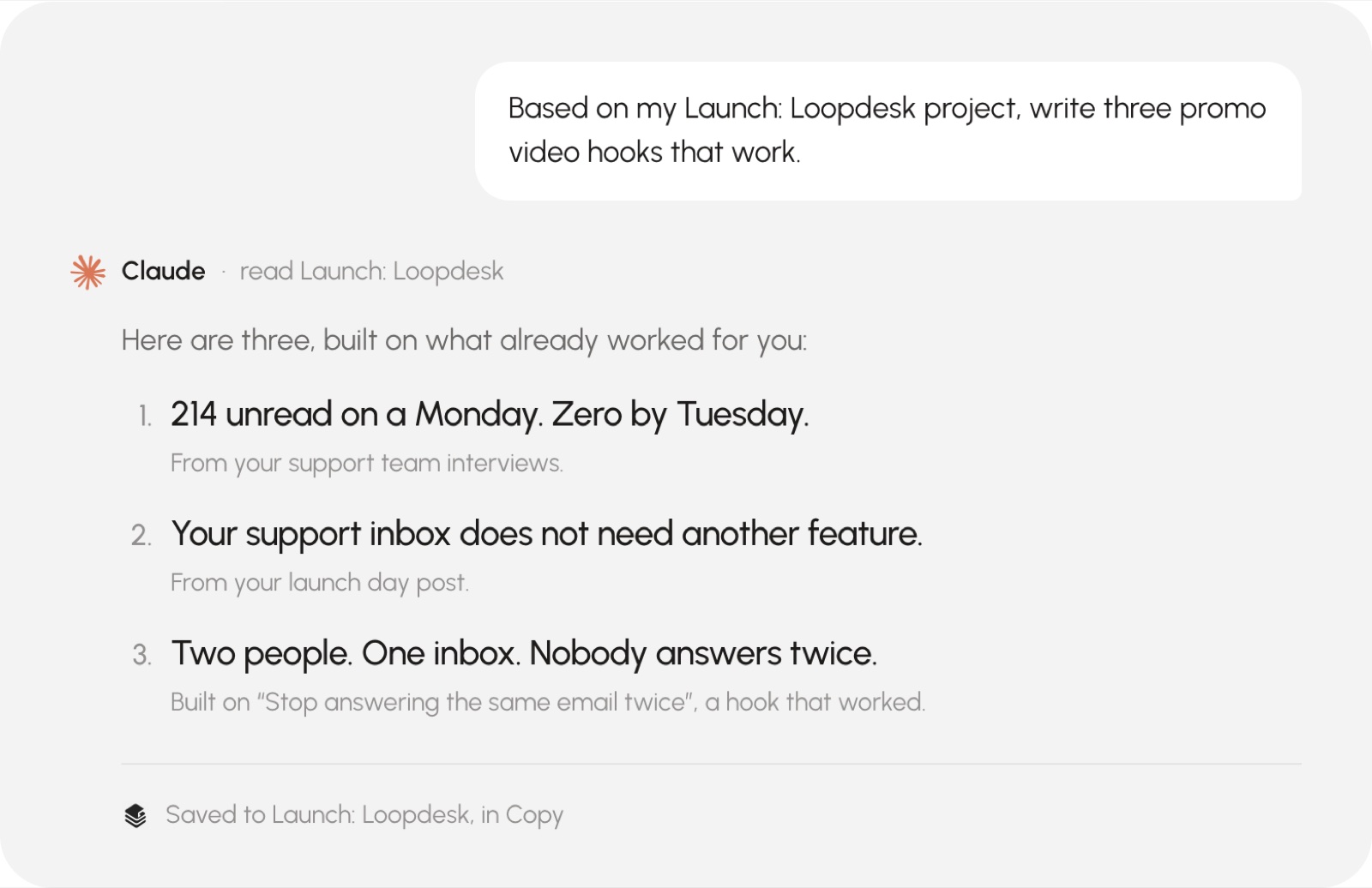
Connect Claude to a Seylo project
Seylo speaks MCP, the open protocol Claude uses to read from other tools. Connecting takes a minute and needs no code:
- 1In Seylo, open Settings, then Connections, and copy the Seylo address.
- 2In Claude, open Settings, then Connectors, and add a custom connector with that address.
- 3Seylo asks you to sign in and approve Claude once, in the browser. The connection renews itself after that.
- 4Start a chat and ask: what projects can you see in Seylo?
Connecting an AI tool is part of Seylo Pro, which you can try free for seven days. The same address works in ChatGPT's connectors, Cursor and Manus, so every tool you use reads the same project. See how the connection works.
What Claude can do once it is connected
- Read your projects, the spaces inside them and what each one holds, and search across all of it.
- Save what it writes back into the project: notes, links and pictures, filed into the right space and marked as made from whatever it was built on. Everything it saves arrives as a draft.
- Revise a note it wrote earlier. The old version is kept, so nothing is lost by letting it edit.
- Record a fact the project did not know yet, such as the launch date you just agreed on.
It cannot delete anything. If something should go, it tells you which one and you remove it yourself.
What happens when it disagrees with you
Sometimes an assistant comes back with a different answer to a question the project already settled: a new hero image, a shorter video. Seylo does not let that overwrite your decision. The value in force stays in force, and the suggestion waits for you in Review with both versions side by side. You use it or keep what you had.
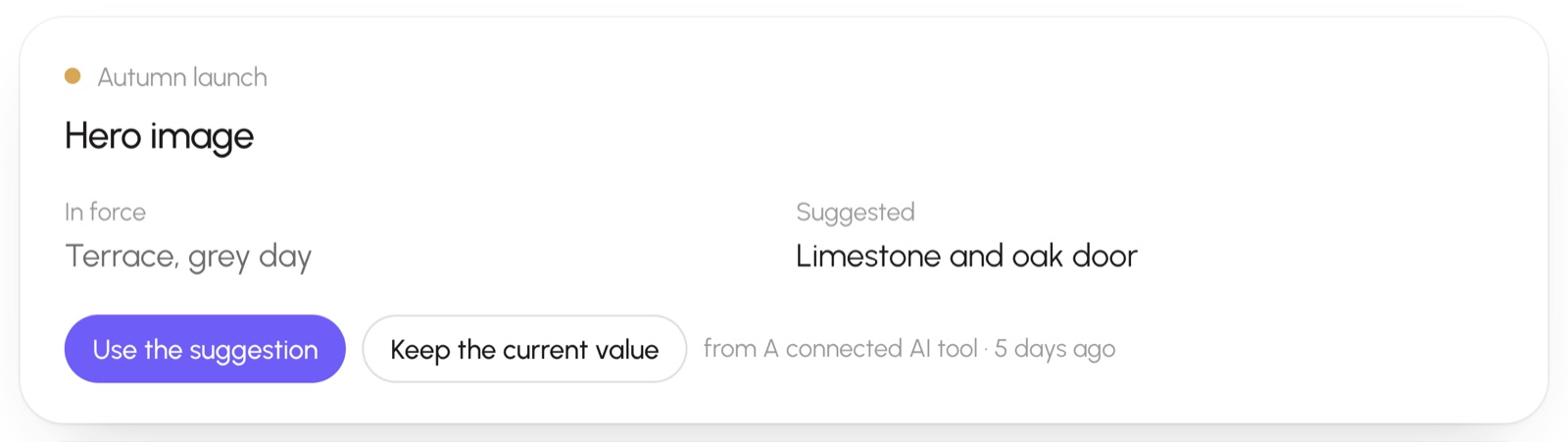
Only a contradiction stops to ask. Anything the project did not already know is simply recorded, so Review stays short enough to actually read.
The short version
- Keep the project in one place instead of in your chat history.
- Write down what is settled, once, where every tool can read it.
- Connect Claude to that place, so each chat starts from the project rather than from zero.
If you already use Claude's own Projects, here is how the two differ.