 Seylo
SeyloBlog · 8 October 2026 · 3 min read
How to keep track of your AI image prompts, and which one made which image
The prompt that worked gets lost in a chat, and the picture it made says nothing about where it came from. Keep each prompt next to the image it produced, mark the one that worked, and find it again in seconds.
You spend an evening getting one image right. Twelve prompts in, one finally works: the light, the bottle, the label you can actually read. A week later you need a second shot in the same style. The prompt is somewhere in a long chat, or in an image tool's history beside forty near misses, and the picture is in your downloads as image_1791389960.png, with nothing to say what made it.
Writing better prompts does not fix that. Keeping the prompt that worked next to the picture it made, and marking which one worked, does.
Why good prompts get lost
- They live in chats. The version that worked is one message among the retries, and you cannot search a chat by what the picture looked like.
- Image tools keep a history, but it is a feed of everything you tried, in the order you tried it, with no way to say which one was the keeper.
- The image and its prompt part ways the moment you download it. The file name says nothing about where it came from.
- A notes file of prompts helps for a week. Then it holds thirty prompts, no pictures, and no record of which ones were ever used.
What to keep for every image
- The prompt, as an item of its own rather than a line buried in a chat.
- The image it made, linked to that prompt.
- Which prompt worked: the one you used, and separately the ones you only tried.
- Where the idea came from: the reference, brief or script the prompt was written from.
With those four, a prompt becomes reusable. You can see what it made before you run it again, and out of ten variations you know which one to start from.
Keep each prompt next to the image it made
In Seylo a project holds everything a piece of work gathers, and each item has a type: a prompt is a prompt, a picture is a visual. Any item can say what it was made from, and the project's map draws that line, from the reference to the prompt to the image and on to whatever was made from the image.
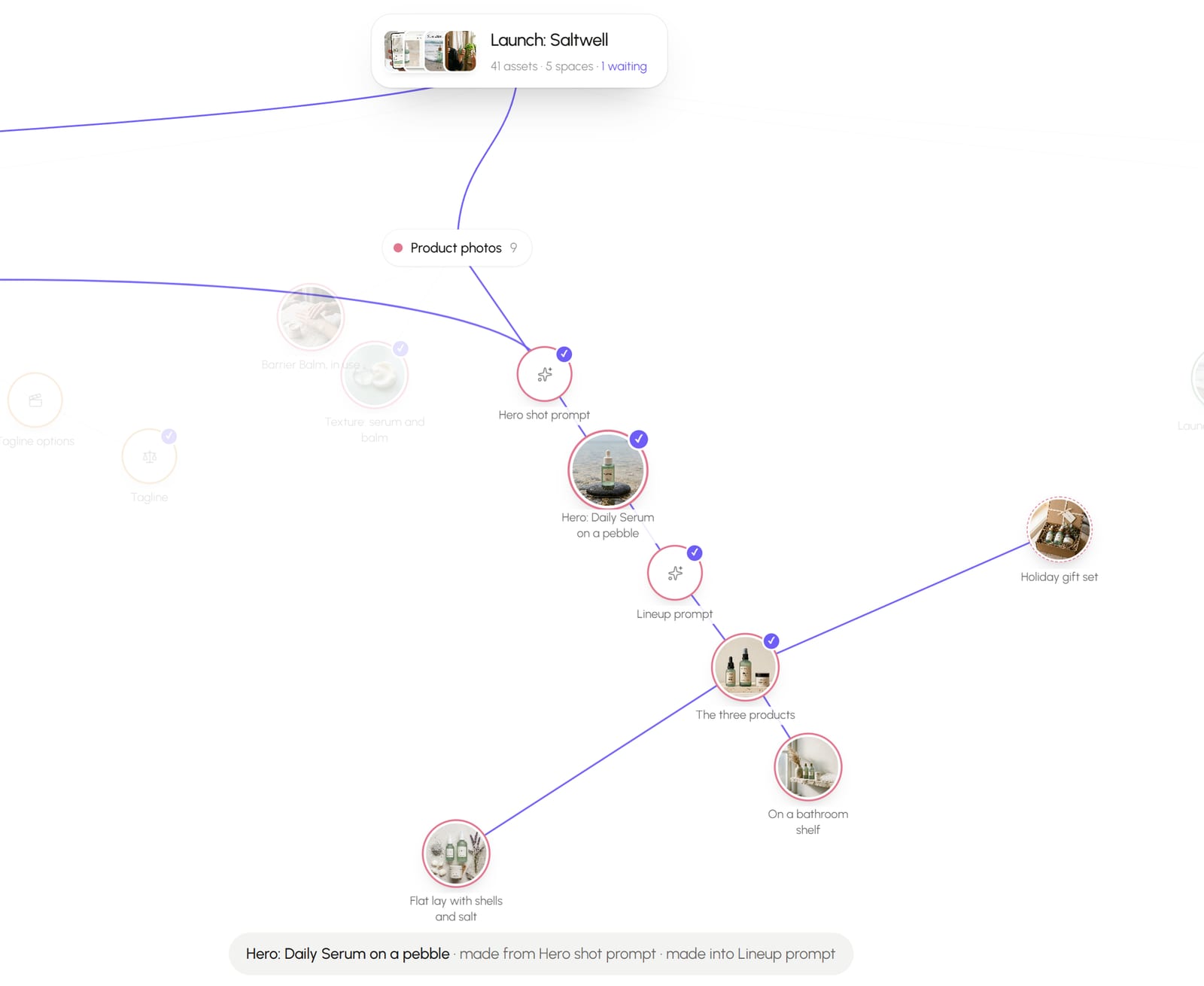
- 1In ChatGPT or Claude, highlight the prompt that worked and press Save to Seylo. Set What is it? to Prompt, and under Came from pick the reference or brief it was written from.
- 2Save the image into the same project: drop the file onto the map, or right-click it on a web page and save it with the browser extension.
- 3Open the image and, beside its status, choose the prompt as what it was made from. The map draws the line straight away.
- 4Set the prompt that worked to Approved. The ones you only tried can stay as drafts, so you can still see what did not work.
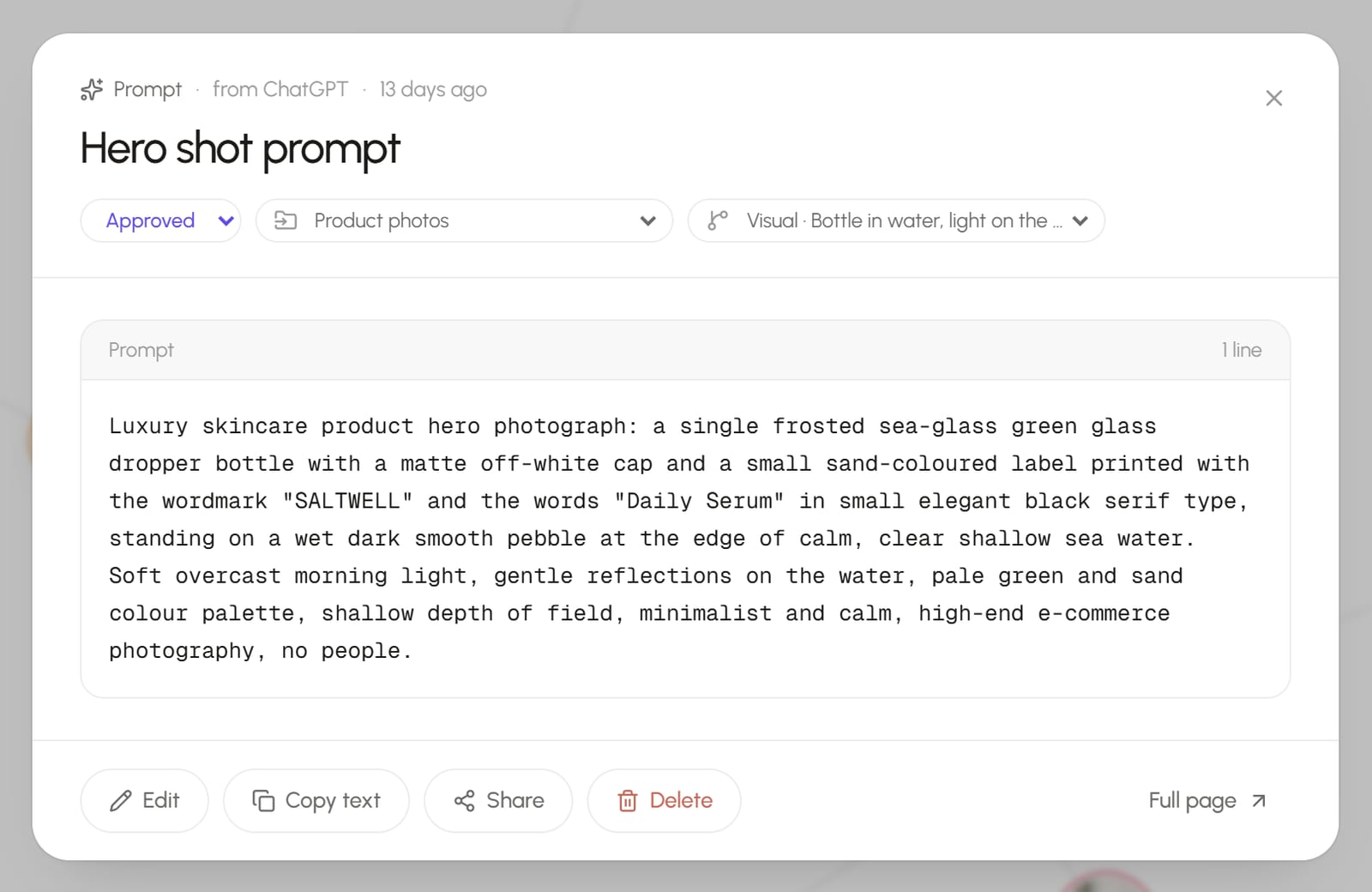
Editing a prompt keeps the earlier version in its history, so tweaking the approved one never loses the wording that made the image.
Find a prompt again
Press Ctrl+K, or ⌘K on a Mac, from anywhere. Search reads the full text of every prompt, not only the titles, so typing what was in it (pebble, dusk, kraft box) finds it, and the image it made is one step away on the map. Put words in quotes to match an exact phrase, and put a minus in front of a word to leave out anything containing it.
Let your AI tool start from what worked
If you connect Claude or ChatGPT to Seylo, it reads the project before it writes. Ask for a second shot in the same style and it can start from the approved prompt instead of from nothing, then save the new prompt back into the project as a draft, marked as made from the first. What a connected tool can and cannot do.
Connecting an AI tool is part of Seylo Pro, which you can try free for seven days. Saving prompts and images, linking them and searching them are on the free plan too.
The short version
- Keep every prompt as an item of its own, next to the image it made.
- Link the image to its prompt, and the prompt to the reference it came from.
- Mark the prompt that worked as Approved, and keep the rest as drafts.
- Find prompts by what was in them, not by when you wrote them.
For the references behind the prompts, see where to keep design references, and remember why they worked. To get prompts out of ChatGPT and Claude in the first place, see how to save ChatGPT and Claude answers before they get lost.