 Seylo
SeyloBlog · 5 October 2026 · 2 min read
Save ChatGPT and Claude answers before they get lost
The best answer is always somewhere in a long chat. Save the part worth keeping into a project, with where it came from, and find it again without scrolling.
You had the perfect answer last Tuesday. It was a good headline, or a prompt that finally produced the right picture, or a list of names the client liked. Now it is somewhere in a conversation that runs to forty messages, in one of three tools, and the search box in each of them is not much help.
The usual workaround is copying it into a notes app. That keeps the words and loses everything around them: which project it was for, which chat it came from, and what it was built on.
Save the part worth keeping, not the conversation
Most of a chat is scaffolding: questions, retries, answers you rejected. What is worth keeping is usually a paragraph, a list or a single line. Saving that part, and only that part, is what keeps a project readable a month later.
How to save it with the Seylo extension
- 1Install the Seylo extension for Chrome and sign in to Seylo once in that browser.
- 2In ChatGPT or Claude, highlight the part of the answer you want to keep. A Save to Seylo button appears next to it.
- 3Check the project. Seylo suggests the one you saved this conversation into last time, and says so.
- 4Pick a space and what it is (a note, prompt, script, brief, decision or code), then press Save.
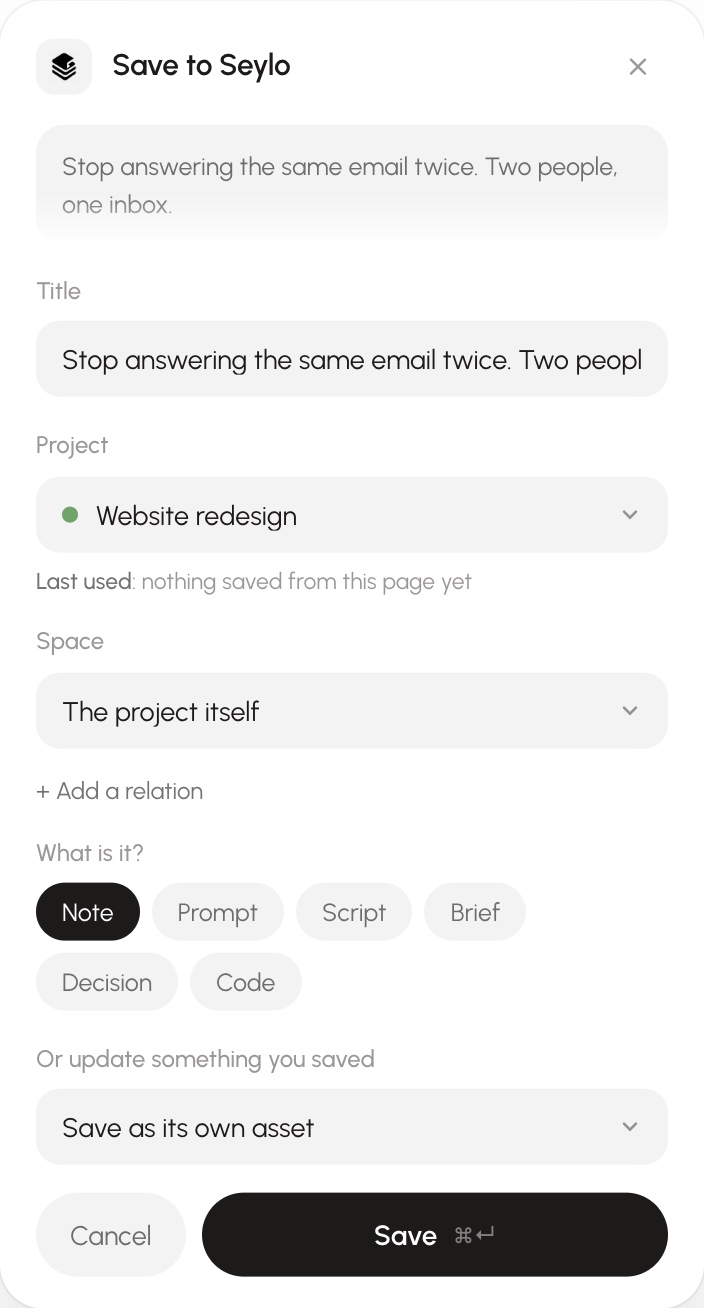
It works the same way in 12 AI tools: ChatGPT, Claude, Grok, DeepSeek, Manus, Kimi, Perplexity, Gemini, Copilot, Le Chat, Qwen, and Poe. On any other page, highlight something and right-click, Save to Seylo.
Keep where it came from
- The conversation it came from is kept with it, so the saved answer links back to the chat.
- If it was built on something already in the project, like a script the prompt was written from, say so in Came from. Seylo draws the line, and you can see later what came of each idea.
- Saving twice with the same title never overwrites anything. The second one simply becomes a second entry.
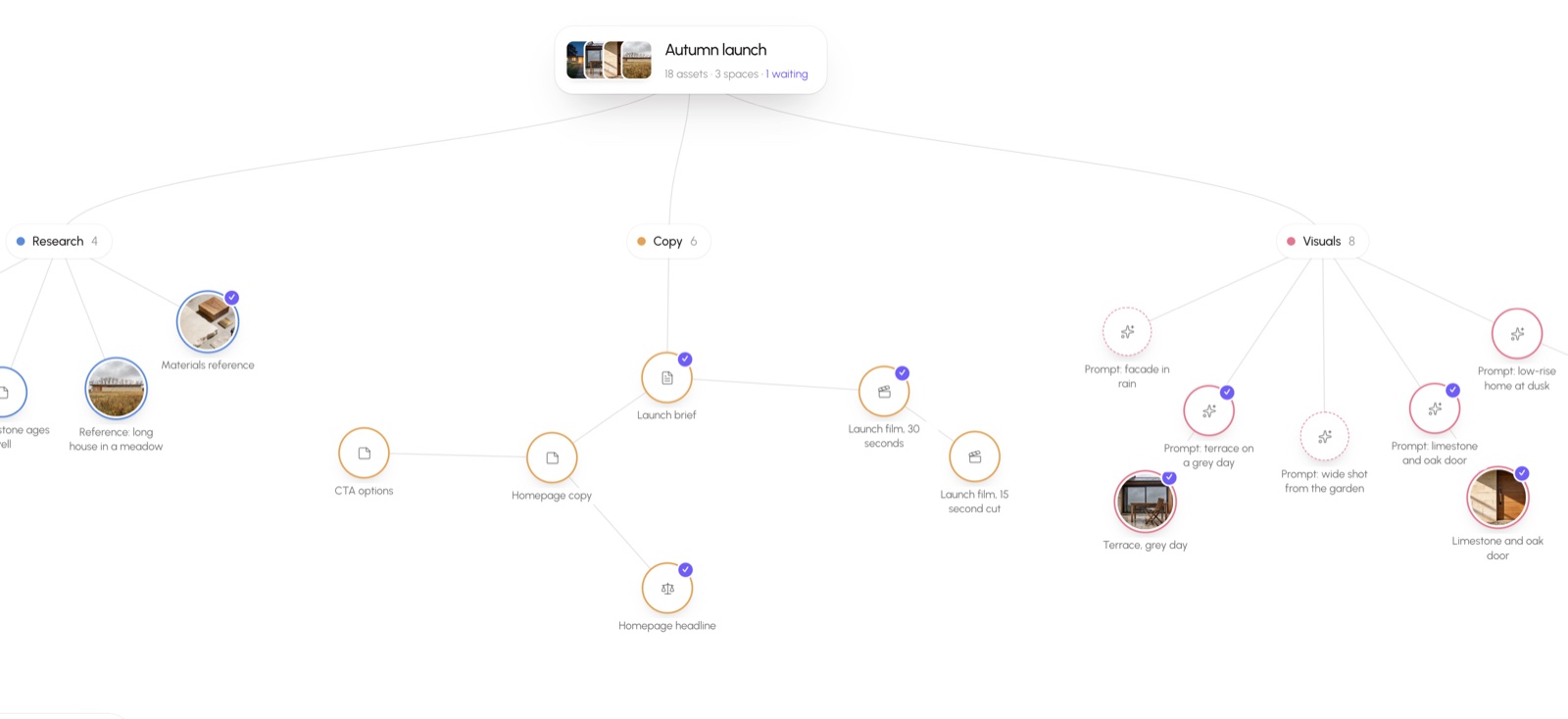
Find it again without scrolling
On any page, Alt+Shift+S (⌥⇧S on a Mac) opens Seylo over it. Search every project at once, and it looks inside what you saved, not only at titles. The answer from last Tuesday is two words away instead of forty messages up.
And because it now lives in a project rather than in one chat, the next tool can read it too. That is the subject of giving Claude a memory of your project.
The extension is free, and so is saving into projects. Install it from the help centre.