 Seylo
Blog · 31 October 2026 · 4 min read
How to organize saved links, screenshots and pins on your iPhone
Every app on your phone keeps its own pile of saved things, sorted by when you saved them. Sort them by what they are for instead: a simple way to keep links, screenshots, pins and notes together, with the tools you have or with an app.
You find a kitchen you like on Pinterest, read a good article in Safari, watch a video on TikTok, and take a screenshot of a price list on the way. A month later you actually start the project. The pin is on a board with four hundred others, the article is in a Reading List you never open, and the screenshot is somewhere among six thousand photos.
Saving was never the hard part, since every app has a button for it. The hard part is that each button leads to a different pile, and none of those piles knows what you saved the thing for.
Why saved things get lost
- Every app has its own pile. Boards, saved posts, favourites, Reading List, Photos. Before you can find something, you have to remember which app it went into.
- Each pile is sorted by when you saved things, and you remember them by what they were for.
- Screenshots sit among your holiday photos, in the order you took them.
- A bare link says very little. A month later, pin.it/4xYz does not tell you what it was or why you kept it.
- A saved post lives on someone else's service. If its owner takes it down, your save goes with it.
Sort by what it is for, not by where it came from
One question fixes most of this: what is this for? The kitchen, the launch, the wedding, the thesis. Give each of those one place, and put everything for it there, whichever app it came from. When you start on the kitchen you open the kitchen, and the pin, the article, the video and the price list are side by side.
Three things are worth keeping for every item:
- The thing itself: the picture rather than only a link to it, wherever you can.
- Where it came from, so you can go back to the original.
- A few words on why you kept it, even if that is only a better title than the one it arrived with.
With what is already on your iPhone
You can start today without installing anything:
- 1In Photos, make one album per project and add your screenshots and saved pictures to it.
- 2In Notes, make one note per project.
- 3When you find a link, press Share, choose Notes, and pick that project's note. Add a line under it saying why.
For one or two small projects this is enough. It starts to strain when a project has dozens of things in it, because the pictures are in one app and the links and thoughts in another, and a picture in an album cannot tell you where you found it.
With everything in one project
Seylo for iPhone is built for exactly this: a project holds the links, pictures, notes and files that belong to it, and spaces inside a project divide it up, say Research, Copy and Visuals.
- 1Press + on the home screen and choose New project. Inside it, the Add button makes a new space.
- 2In any app, press Share and choose Seylo. The first time, scroll the row of apps to the end, press More and switch Seylo on.
- 3Pick the project and the space, and press Save.
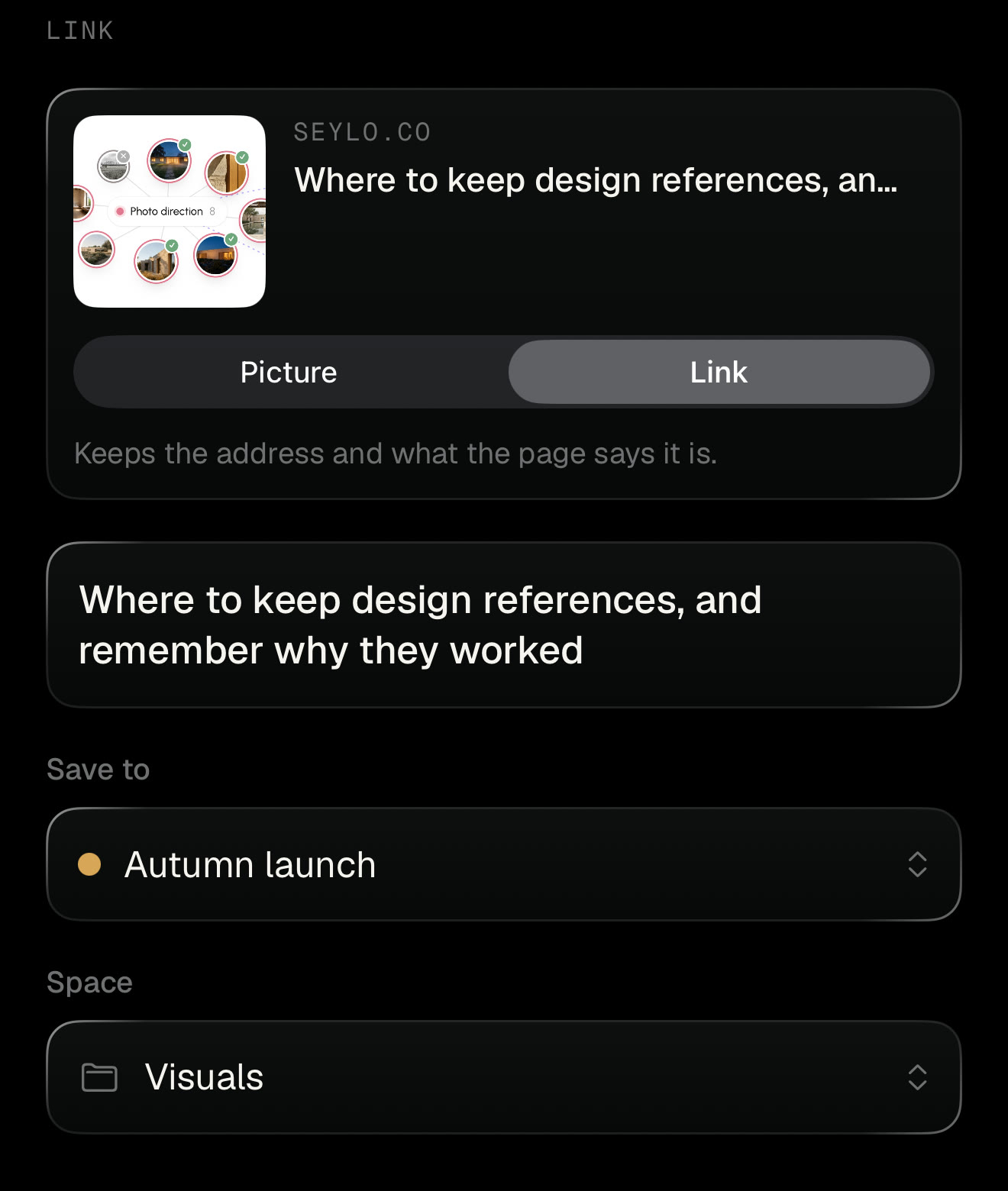
Each kind of thing arrives as what it is:
- A page from Safari keeps its title and address, so you can open it again.
- A pin can be saved as the picture itself or as the link, and the form lets you choose.
- A YouTube or TikTok video can be kept as a link or as its cover picture. The video stays where it is; Seylo does not download it.
- A screenshot or photo can be shared from Photos, or added with the + button in the app, along with new photos from the camera.
- A passage you selected on a page becomes a note, with the page as its source.
- A thought of your own goes in with + and Write.
Getting it back
Open the project and everything is there, newest first, with pictures shown as pictures and notes showing their first lines. Open anything to see where it came from and go back to the original with one press. If the title it arrived with says nothing, press Edit and give it one that does.
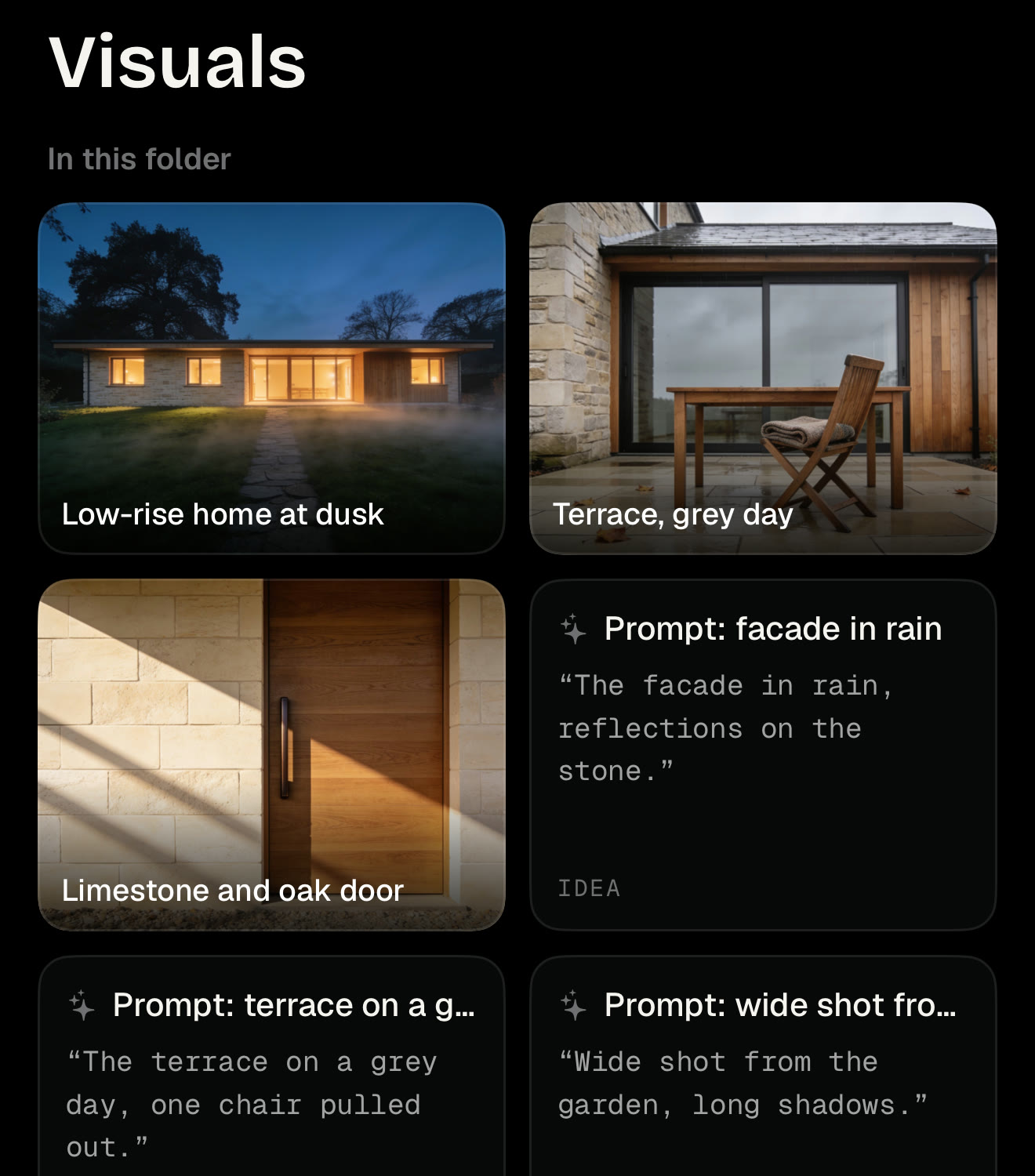
The same projects are on seylo.co when you are at a computer. There each one is also a map you can lay out, the arrow keys step through a folder one item at a time, and Ctrl+K, or ⌘K on a Mac, searches titles and the full text of what you wrote.
Keep what you will use again
Some things outlast the project you found them for: a layout you would copy, a headline that worked. Seylo's Library keeps those outside any one project, grouped by theme, and lets you mark whether each one worked. More on keeping references and remembering why they worked.
The iPhone app is free to download. Seylo's free plan covers three active projects with three spaces in each, and the Library is on every plan.
The short version
- Sort what you save by what it is for, not by the app it came from.
- Give each project one place, and put everything for it there.
- Keep the thing itself, where it came from, and a few words on why.
- Albums and notes are enough for a small project. For a bigger one, keep it all together so nothing depends on remembering which app it went into.
If you also work with Claude or ChatGPT, they can read the same project: see how to give Claude a memory of your project.